Review Workflow
The workflow is designed for snowball sampling: start with known seed papers, expand their citation neighborhood, screen the new discoveries, and keep enough context to explain why each paper moved through the review.
The basic loop is create a project, import seeds, expand citations, receive discoveries, screen papers, and audit the result.
The End-To-End Path
- Create or open a project. The desktop app opens local project folders; the browser app opens IndexedDB-backed browser projects.
- Import seed papers from a BibTeX file. Imported seeds land in Included with a built-in Seed badge.
- Expand backward references or forward citations from selected papers. Each
request appears in the Jobs panel as a discrete
Backward expansionorForward expansionjob per paper, withActiveandFinishedtabs. - Receive queued discoveries into the Inbox when you are ready to screen them. Use ArrowUp / ArrowDown to walk through papers and hold Shift to extend the selection.
- Move papers to Included, Deferred, or Excluded. Screening decisions remain visible in the history view and in the project files.
- Use tags, collections, and the sidebar Collections section to organize the active box.
- Use the graph, detail pane, assistant, and history views to inspect why each paper is in the corpus.
1. Create Or Open A Project
Choose the host that matches the review. Use the desktop app for local folders, PDFs, and durable filesystem-backed projects. Use the browser app for a zero-install project that can later be exported as a zip archive. Use the VS Code extension when the review folder belongs inside an editor workspace.
Project data stays local-first: user-visible review state lives in BibTeX box
files, while machine-managed state lives under .citetraverse/.
See Project setup and storage and Hosts and deployment.
2. Import Seed Papers
Import a BibTeX file containing papers you already trust as starting points.
Seeds land in Included and keep the reserved seed tag. CiteTraverse then
builds seed-to-seed citation connections in the background so the graph can show
relationships among the initial papers.
See Import and citation expansion.
3. Expand Citation Neighborhoods
Select one or more papers and run backward expansion for references or forward expansion for citing papers. Each expansion is represented as a job, and provider results are bounded so the review does not silently become an uncontrolled crawl.
New discoveries either enter Inbox or wait in Queued, depending on the workspace settings and whether continuous fetch is running.
See Citation providers and Progress, history, and assistant.
4. Receive And Screen Discoveries
Use Queued as the buffer for newly found candidates. Receive selected queued papers into Inbox when you are ready to screen them, then move papers to Included, Deferred, or Excluded.
Use row actions for fast decisions, batch actions for multiple selected rows, and the detail pane when a decision needs more context. Screening decisions are recorded in history and persisted in the project files.
See Queue and screening.
5. Organize The Review
Use notes, tags, collections, metadata completion, and merge review to keep the corpus understandable as it grows. Collections can be used as sidebar filters and exported as derived custom BibTeX files.
See Review organization.
6. Inspect, Audit, And Recover
Use the graph to inspect citation structure, the detail pane to inspect paper-level evidence, the jobs panel to review work in progress, and history to understand what changed. When a history entry supports recovery, restore from its snapshot.
See Workspace surfaces, Advanced filtering and metrics, and Progress, history, and assistant.
Paper List
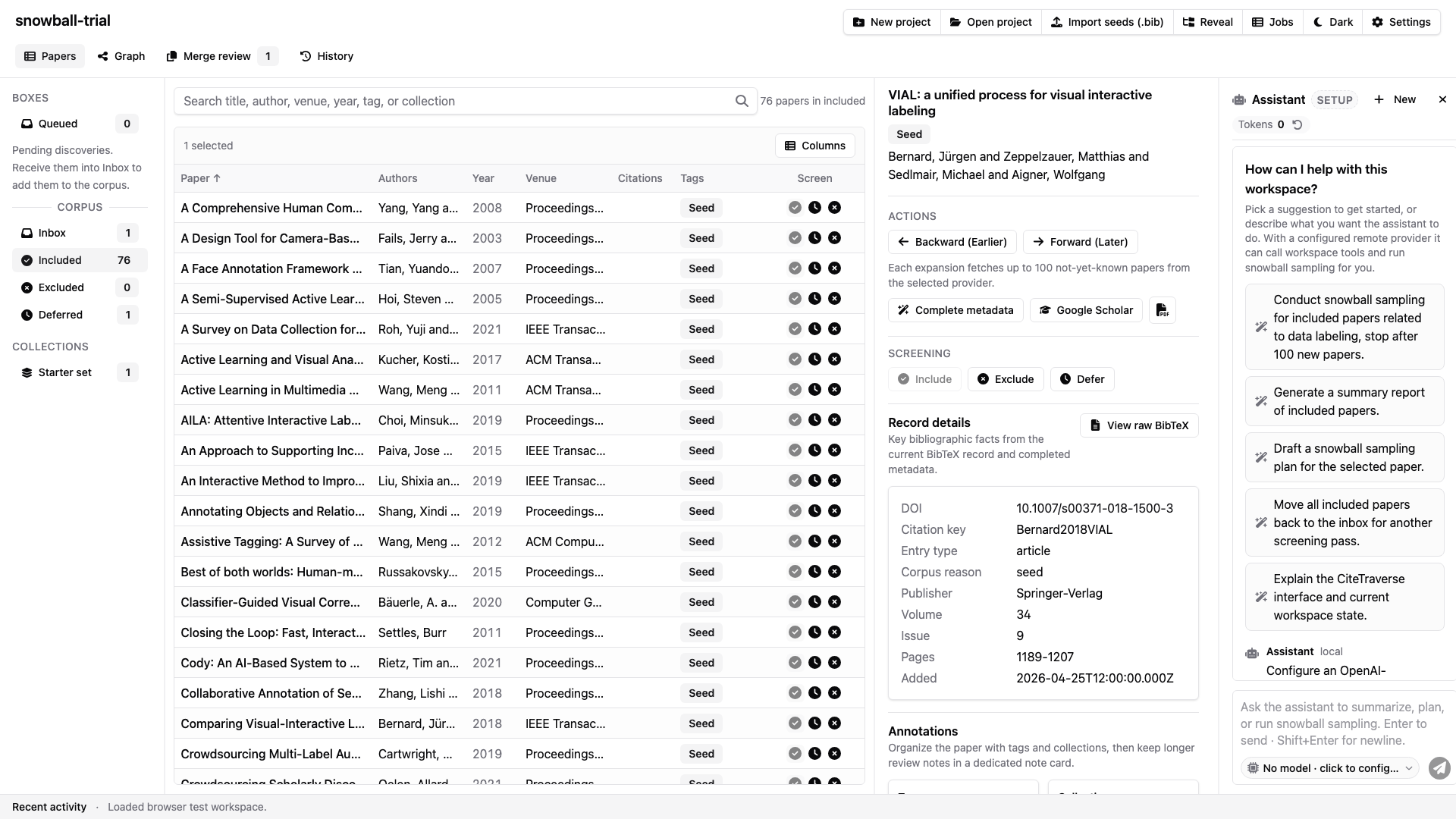
The paper list is the main screening surface. It supports sortable columns, bulk selection, keyboard navigation, configurable column visibility, tags, seed badges, citation counts, and row-level screening actions. Selecting a paper updates the graph and detail pane so list review and citation exploration stay in sync.
Use the list when you need to make many decisions quickly. Use sorting and columns to bring high-signal papers to the top, filter by the active box or collection, and move papers into Included, Deferred, or Excluded without switching context.
Workspace Views
The shell can show or hide the primary side bar, recent-activity status bar, and assistant side bar from Workspace Settings. The main area keeps paper list, graph, jobs, and history views available so you can switch between screening, citation exploration, expansion progress, and audit trails without leaving the project.
Assistant
The docked assistant pane uses a Cursor-style composer: the model name lives inside the input as a clickable chip, and the send/stop affordance is an icon button embedded in the same input. Clicking the model chip opens the AI panel inside Workspace Settings so the provider, model, and endpoint can be edited together. Until an OpenAI-compatible provider is configured the assistant still answers built-in workspace help and generates included-paper reports — chat replies politely point to the AI settings panel instead of falling back to a placeholder provider.
Assistant tool actions that can mutate the workspace ask for approval before they run. This keeps snowball sampling and other workspace changes explicit.
Use the assistant for questions such as "summarize the included papers", "what should I inspect next?", or "help me expand from this seed". Local help works immediately; general model chat requires configuring an OpenAI-compatible provider.
Expansion Limits
Each manual expansion fetches up to 100 not-yet-known candidates from the selected provider. This keeps latency and storage bounded while still allowing repeated forward searches on highly cited papers to explore deeper than the first page of results.
Queued Discoveries
Queued papers are discoveries that have not yet entered the active screening corpus. You can receive selected queued papers, discard selected queued papers, or use the table header actions to receive or discard the entire queue.
Detail Pane
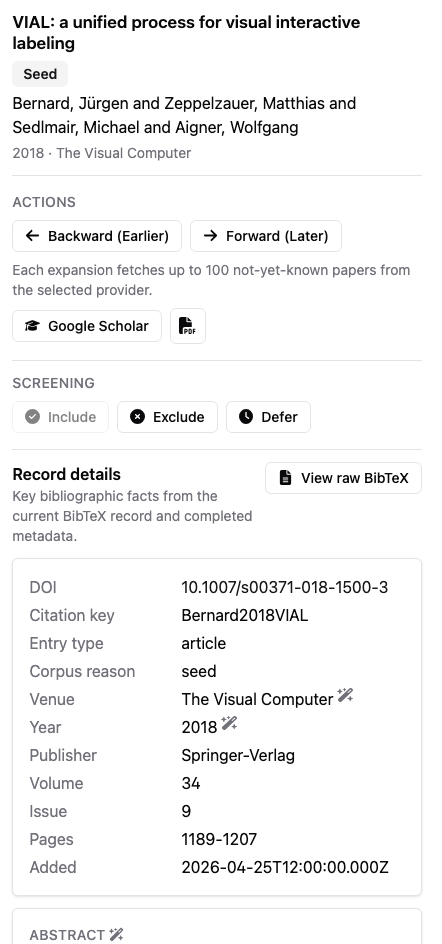
The detail pane shows the selected paper's title, authors, year, DOI, URL, metadata completion status, coverage metrics, neighbor counts, notes, tags, collections, and raw BibTeX. Desktop projects can open local PDFs when a paper has an attached path.
History And Recovery
The history view records important project events such as imports, screening changes, expansion results, metadata updates, and assistant-approved actions. When a history entry supports recovery, you can restore the project to that snapshot from the history view.
Graph View
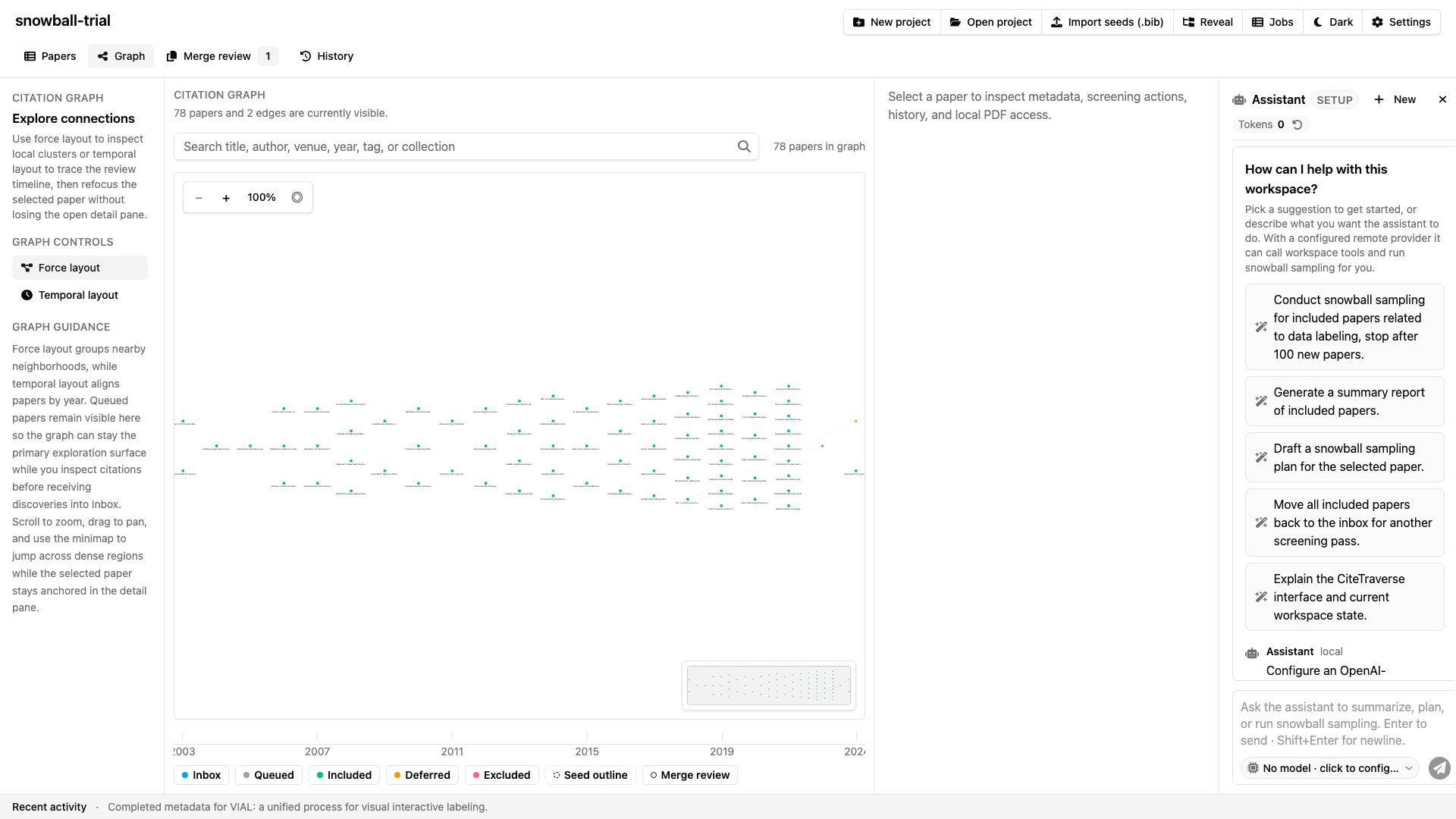
The graph view keeps list screening connected to citation structure, with a temporal layout for seeing papers by publication year.